WebView Renderer Process Crashes: A Deep Dive
The actionable conclusion is simple: on Android 8.0 (API 26) and later, every WebView must handle WebViewClient.onRenderProcessGone() by returning true, removing the dead instance from its hierarchy, calling destroy(), clearing references, and creating a new WebView only when the current lifecycle still needs one. didCrash() distinguishes a renderer exit marked as a crash from one that was not; it does not diagnose every OOM, GPU, or page failure. If multiple WebViews share a renderer, one unhandled callback can still cause the host app to be killed.
In mobile app development, WebView has become an important component for embedding web content. On Android in particular, WebView is usually implemented on top of Chromium, so its stability and security directly affect the overall user experience of an app. In real-world development, however, you may encounter cases where the WebView renderer process exits unexpectedly or crashes. The error log may look like this:
[FATAL:crashpad_client_linux.cc(745)] Render process (16575)'s crash wasn't handled by all associated webviews, triggering application crash.This article analyzes the issue from several angles. It explains the causes, the underlying mechanism, and how to respond and self-check from both the native side and the frontend side, so the app can degrade gracefully when a WebView crash happens instead of bringing down the entire process.
1. Background and Error Log Interpretation
When using a Chromium-based WebView, Crashpad is a common tool for capturing and reporting crash information. The error log indicates two things:
- Renderer process crash:
Render process (16575)refers to a process used to render web pages. It hit a fatal error and crashed while running. - Not handled by all WebViews: the system tried to let all associated WebViews handle the crash, but some WebViews failed to catch it. As a result, the whole app crashed.
This means the low-level exception was not fully isolated or recovered, which then caused a more serious app-level failure.
1.1 Example Error Log
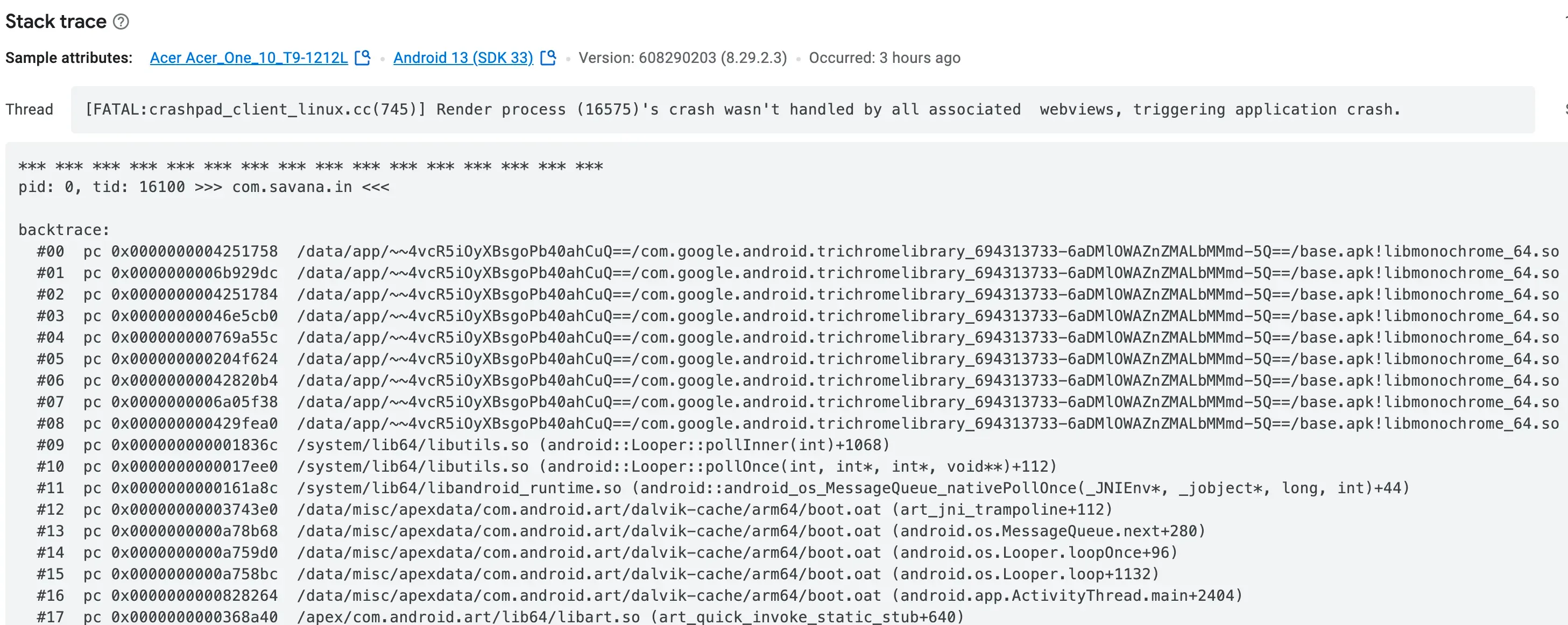
Figure 1: An example error log showing Crashpad reporting a renderer process crash
2. Why the WebView Renderer Process Exits or Crashes
For Android WebView’s implementation architecture, see: https://www.youtube.com/watch?v=qMvbtcbEkDU
The exit reason needs evidence from device logs, WebView version, the reproducing page, and memory or graphics data. The following are investigation hypotheses, not diagnoses that didCrash() can establish on its own:
2.1 Low Memory and Resource Exhaustion
- Memory leaks and excessive consumption: complex pages, heavy JavaScript execution, or large image and video resources can make WebView consume too much memory. When device memory is low, the operating system may actively terminate processes that use too many resources.
- Poor memory management: low-level allocation problems, memory leaks, or out-of-bounds access can also crash the renderer process.
2.2 Page, App-Code, and Engine Defects
- JavaScript errors are not sufficient evidence of a renderer crash: handle and report ordinary JS exceptions in the page. Treat them as a Chromium/WebView lead only when they reproducibly correlate with a renderer-exit log.
- Engine bugs: Chromium itself may contain unresolved defects that cause the renderer process to exit abnormally in specific scenarios.
2.3 Hardware Acceleration and GPU Issues
- Hardware acceleration problems: when hardware acceleration is enabled, graphics driver or GPU problems, such as compatibility issues or driver errors, may also crash the renderer process.
2.4 Security Vulnerabilities and Malicious Content
- Malicious pages: malicious code or exploited vulnerabilities may abnormally terminate the low-level renderer process.
- Content loading issues: loading unsafe or malformed content can also trigger engine-level exceptions.
2.5 System Resource Management Policies
- Background resource reclaiming: to optimize overall performance, the operating system may reclaim long-idle processes or processes with high resource usage. This can also cause the WebView renderer process to exit unexpectedly.
3. Native-Side Recovery: onRenderProcessGone
onRenderProcessGone() is available from API 26. Its purpose is host recovery after a renderer has exited, not final root-cause classification. Releases below API 26 do not offer this callback, so do not promise the same process-level recovery there.
3.1 How the Method Works
onRenderProcessGone catches a renderer exit caused by a crash or system termination. RenderProcessGoneDetail.didCrash() is a classification signal: true means WebView marked the exit as a crash, while false means it did not. It cannot by itself prove an OOM, leak, GPU driver, or particular JavaScript cause. Keep recovery and diagnosis separate.
- Record correlatable evidence: record
didCrash, a redacted URL, WebView provider/version, device and Android version; then use logcat, crash reporting, and a reproducer to diagnose cause. - Handling strategy: returning
truesays this instance was handled. Every WebView attached to the same renderer must returntrue; otherwise WebView can still kill or crash the host app by default.
3.2 Kotlin example: clean up, then let the user retry
import android.net.Uri
import android.os.Bundle
import android.util.Log
import android.view.View
import android.view.ViewGroup
import android.webkit.RenderProcessGoneDetail
import android.webkit.WebView
import android.webkit.WebViewClient
import android.widget.Button
import android.widget.FrameLayout
import androidx.fragment.app.Fragment

class BrowserFragment : Fragment(R.layout.fragment_browser) {
    private var container: FrameLayout? = null
    private var currentWebView: WebView? = null

    override fun onViewCreated(view: View, savedInstanceState: Bundle?) {
        container = view.findViewById(R.id.web_container)
        installWebView("https://example.com/home")
    }

    private fun releaseWebView(webView: WebView) {
        (webView.parent as? ViewGroup)?.removeView(webView)
        if (currentWebView === webView) currentWebView = null
        webView.destroy()
    }

    override fun onDestroyView() {
        currentWebView?.let(::releaseWebView)
        container?.removeAllViews()
        container = null
        super.onDestroyView()
    }

    private fun installWebView(url: String) {
        val host = container ?: return
        if (!isAdded) return
        currentWebView?.let(::releaseWebView)
        val webView = WebView(host.context)
        currentWebView = webView
        webView.webViewClient = object : WebViewClient() {
            override fun onRenderProcessGone(
                view: WebView,
                detail: RenderProcessGoneDetail
            ): Boolean {
                // Log only the host, never a path, query or fragment containing user data.
                Log.w("WebView", "rendererGone crash=${detail.didCrash()} host=${Uri.parse(url).host}")
                val wasCurrent = currentWebView === view
                releaseWebView(view)
                if (wasCurrent && container === host && isAdded) {
                    showRetry(host, url)
                }
                return true
            }
        }
        host.removeAllViews()
        host.addView(webView, FrameLayout.LayoutParams(
            ViewGroup.LayoutParams.MATCH_PARENT,
            ViewGroup.LayoutParams.MATCH_PARENT
        ))
        webView.loadUrl(url)
    }

    private fun showRetry(host: FrameLayout, url: String) {
        if (container !== host || !isAdded) return
        host.removeAllViews()
        host.addView(Button(host.context).apply {
            text = "Reload page"
            setOnClickListener {
                if (container === host) installWebView(url)
            }
        })
    }
}
The fragment layout needs a FrameLayout whose ID is web_container. The callback is scoped to a nullable view reference, cleared in onDestroyView; this avoids using a Fragment view merely because isAdded is true. The example intentionally stops after cleanup and shows a user-triggered retry, so repeated failure cannot create an automatic recovery loop. It was not run for this article.
4. Self-Checks and Monitoring in Frontend Code
Frontend code cannot reliably catch a native renderer exit: after the process is gone, JavaScript callbacks, heartbeats, and Page Visibility do not run in place of the native callback. They can provide page-quality signals, but are neither a renderer-crash recovery path nor root-cause evidence.
4.1 Global Error Monitoring
JavaScript’s global error capture mechanism can record errors and report them to a backend server when exceptions occur, which makes later analysis easier.
Example Code
window.onerror = function(message, source, lineno, colno, error) {
    console.error("Caught error:", message, source, lineno, colno, error);
    // Send the error information to a server or report it through a third-party monitoring tool.
};
This method captures JavaScript runtime errors and is useful for page-quality monitoring. It cannot capture a native renderer crash and ordinary JS errors should not be counted as renderer exits.
4.2 Heartbeat Detection
By periodically sending heartbeat requests or running simple tasks, you can check whether the page is still responding normally. If no response is detected within a certain time window, the underlying process may be abnormal.
Example Code
function sendHeartbeat() {
    fetch('/heartbeat')
        .then(response => {
            if (!response.ok) {
                throw new Error('Heartbeat request failed');
            }
            console.log('Heartbeat is healthy');
        })
        .catch(error => {
            console.error('Heartbeat error:', error);
            // Report the error or trigger the corresponding handling flow here.
        });
}

// Send a heartbeat request every 30 seconds.
setInterval(sendHeartbeat, 30000);
This heartbeat can reflect network or page-task failure, but cannot prove that the renderer exited. Avoid misclassifying background throttling, offline state, or server failure as a native crash.
4.3 Page Visibility and Performance Monitoring
visibilitychange is a normal browser lifecycle event: it commonly means the app was backgrounded, covered, or shown again. It is not evidence that a renderer failed. Use it only to pause nonessential page work or record a normal lifecycle transition.
document.addEventListener('visibilitychange', () => {
  if (document.visibilityState === 'hidden') stopNonessentialWork();
});
The Performance API can describe resource timing for an active page, subject to browser privacy and timing rules. It also cannot detect a native renderer exit.
4.4 An executable investigation sequence
- Verify that every WebView on API 26+ installs a callback that returns
true, including list, dialog, child-Fragment, and hidden preloaded instances. - Collect
didCrash, scenario or redacted URL, Android version, WebView provider/version, and matching logcat. They are correlating evidence, not a single-point diagnosis. - Reproduce on a physical device and check whether multiple WebViews share the renderer. Every associated instance must be removed, destroyed, and dereferenced.
- Create a replacement only while the host is alive and still needs content. Save URL or navigation state in app code; do not reuse the destroyed WebView.
5. Comprehensive Response Strategy and Best Practices
When dealing with WebView renderer process crashes, a single layer of defense is often not enough. The following are comprehensive response strategies and best practices:
5.1 Native-Side Protection
- Update dependencies: keep the WebView component and related Chromium engine up to date so you benefit from the latest bug fixes and performance improvements.
- Use the
onRenderProcessGonecallback: overrideonRenderProcessGonein WebView, and choose different recovery strategies based on why the renderer process exited, whether from a crash or system reclaiming. This ensures one WebView crash does not affect the entire app. - Logging and monitoring: use tools such as Crashpad to record detailed crash logs, and combine them with a reporting system to monitor app state in real time.
5.2 Supplementary Frontend Detection
- Global error capture: use
window.onerrorand other error listeners to catch exceptions and report them to the backend. - Heartbeat detection: design a reasonable heartbeat mechanism so the page can report its own state promptly and trigger handling as soon as an abnormal state is detected.
- Performance and visibility monitoring: use the Performance API and Page Visibility API to monitor page loading and state, which helps investigate abnormal behavior.
5.3 Coordinated Handling and User Experience
- Error prompts and fallback strategies: when a crash or abnormal state is caught, show a friendly error page promptly and provide recovery or retry actions where possible, so users are not left confused or frustrated.
- Resource release and safe recovery: remove, destroy, and dereference the old WebView first. Create a new instance only while the Activity or Fragment remains valid, then restore app-saved URL or navigation state.
- Detailed log recording: both native and frontend layers should record detailed error logs and use a reporting system to analyze exceptions for later improvements.
6. Summary
WebView renderer exits are multi-factor failures that require device evidence. Developers should use the native-side onRenderProcessGone callback to remove and destroy the unusable instance, then offer a deliberate retry or fallback. Frontend error and network telemetry can describe page quality, but they neither recover from nor prove a native renderer exit.
By combining these strategies, you can reduce the impact of WebView renderer process crashes on the whole app and provide development teams with more diagnostic details for more effective troubleshooting and performance optimization. This article covered the causes, mechanisms, and response methods for WebView renderer process crashes, with the goal of helping developers build more robust apps with a better user experience.
Related performance investigations
- Back to topic: Android Performance Optimization
- Getting started with Android Perfetto
- Android startup metrics: cold start, TTID, and Perfetto